
Quick answer: Faded labels on a Zebra printer are usually a settings or media problem: darkness set too low, print speed too high, the wrong label stock or ribbon, or a ribbon loaded inside out. A white line in the same place on every label is different. It is a dirty printhead, a worn platen roller, or a burnt-out printhead element, and a burnt-out element needs a printhead replacement. Blank or garbled labels usually point to the print mode, printer language, driver or print queue.
Printhead or platen worn out? Send it to our bench.
ATS repairs Zebra desktop and mobile label printers, including discontinued models. Tell us the model and what your labels look like, and we will quote the repair.
✓ 40+ years in electronics repair ✓ ISO 9001 certified ✓ Single units or full fleets
Jump to
- How to tell a settings problem from a failed printhead
- Why is my Zebra printer printing faded labels?
- How to check which side of a ribbon is inked
- How to clean a Zebra printhead and platen roller
- Blank or garbled labels
- How to recalibrate a Zebra label printer
- Zebra label printer models covered in this guide
A Zebra label printer has very few moving parts, which is why the same handful of faults account for almost everything that reaches our bench. Faded print, a streak in the same place on every label, and labels that come out blank look similar from across the room. They are not. Each comes from a different part of the printer, and only one of the three needs a technician.
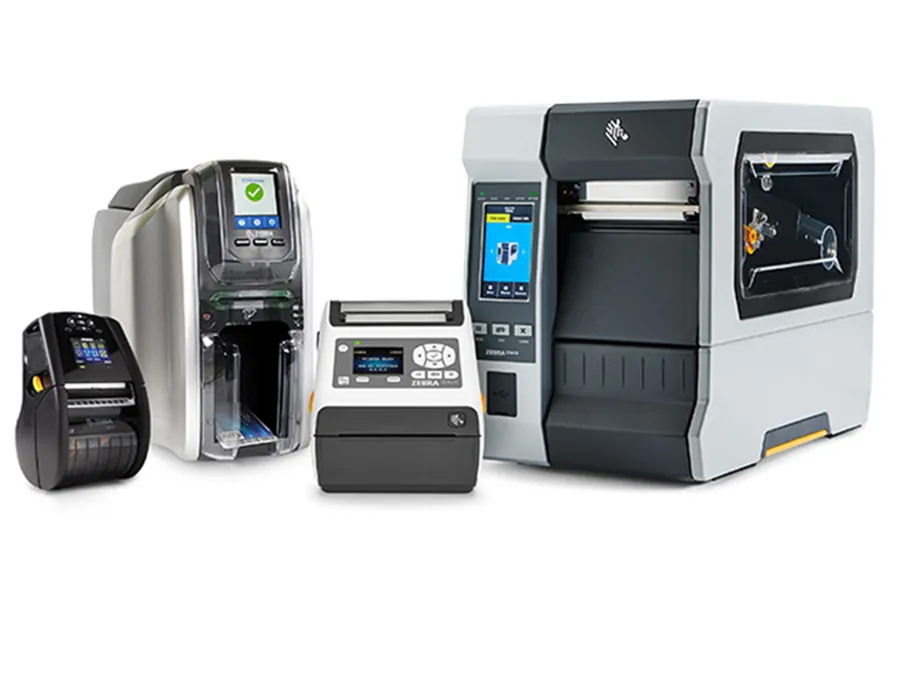
This guide covers the Zebra desktop and mobile printers we repair most: the GC420t, GK420t, GX420t and GX430t desktop units, and the QLn220, QLn320, ZQ210, ZQ220, ZQ310, ZQ320, ZQ510, ZQ520 and ZQ610 mobile printers. Work through it in order. Most people find their answer before the second section. The full model list, with each printer's manufacturer status, is on our Zebra label printer repair page.
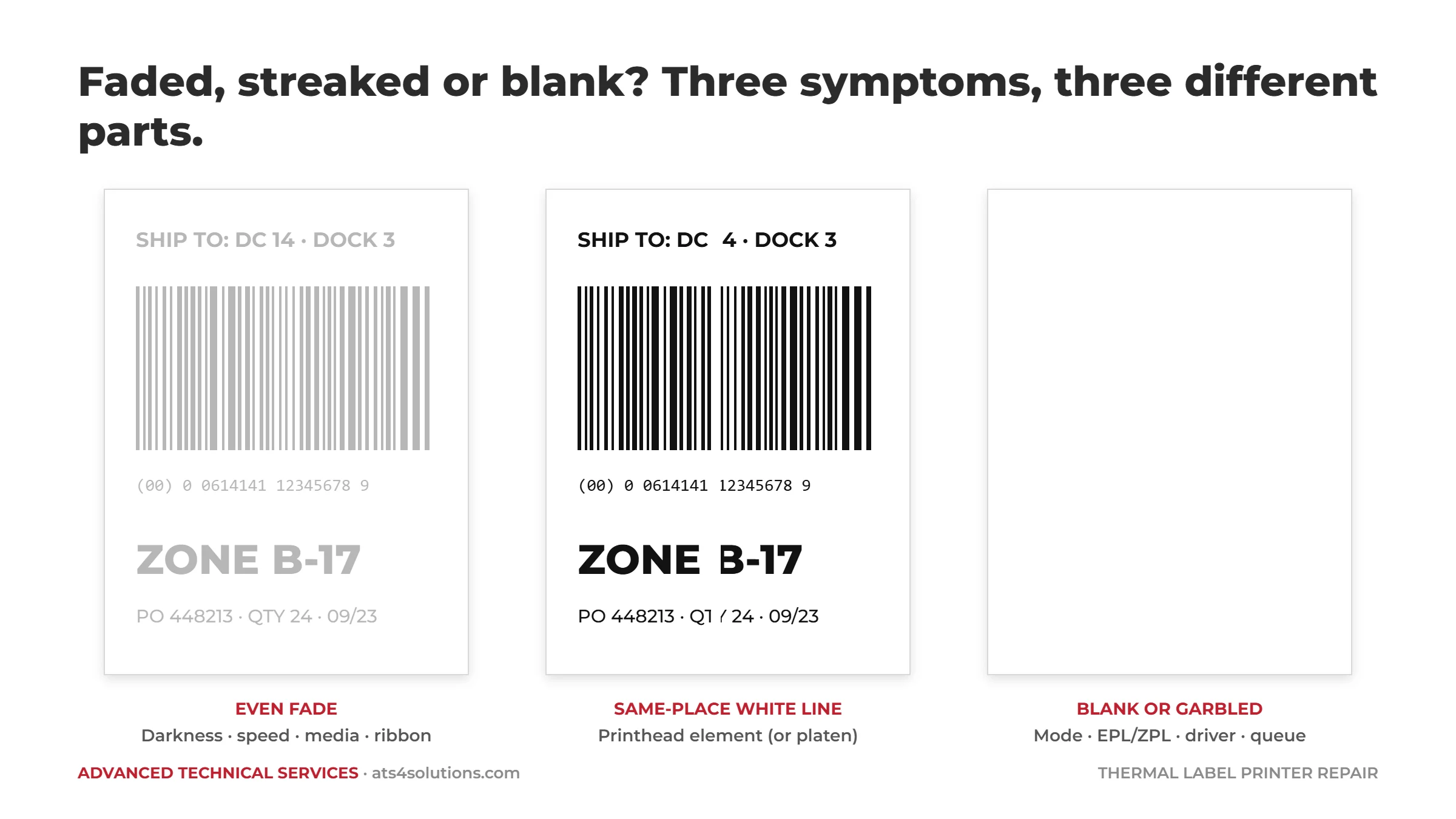
| Symptom | Where the fault is | Try this first | Bench repair if |
|---|---|---|---|
| Faded evenly across the label | Darkness, speed, media, ribbon or mode | Raise darkness a step, lower speed a step, match ribbon to label | Print stays light on correct media at sensible settings |
| White line in the same place on every label | Printhead element or platen roller | Clean the printhead with 90%+ isopropyl; clean the platen | The line survives a clean head and platen |
| Blank or garbled labels | Print mode, EPL/ZPL language, driver, queue | Check ribbon and mode, reinstall the driver, clear the queue | Firmware, board or radio fault remains |
| Skips labels or prints across the gap | Media sensor or calibration | Clean the sensor window and run media calibration | It will not calibrate on clean, correct media |
Cleaned the printhead and platen and the line is still there? Request a repair quote and tell us the model and what it is doing.
Is it the printer or the label file? Print one test label
Before changing anything, print the printer's own configuration or test label. On the GK and GX desktop series that is a feed-button sequence documented in the user guide; on the QLn and ZQ mobile printers it is in the settings menu or a feed-button hold. This matters because it separates the printer from everything upstream of it. If the test label is crisp and your labels are faded, the printer is fine and the fault is in the driver, the label format or the media. If the test label is faded or streaked too, keep reading. And if the labels look fine but your scanners are rejecting them, the fault may be on the other side; our guide to a Zebra scanner that will not scan covers that.
Why is my Zebra printer printing faded labels?
Faded print that is even from edge to edge is a heat problem. A thermal printhead prints by heating a row of tiny elements against the label. If the elements do not get hot enough, or do not stay on the label long enough, the image comes out light. Four settings and media faults cause this, and all of them are free to fix.
Darkness set too low
Darkness (Zebra also calls it print density or heat) is the amount of energy delivered to each element. On the desktop printers it lives in the driver's Printing Preferences and can also be set from the printer's own settings; on the mobile printers it is in the settings menu or in Zebra's setup utility. Raise it in small steps and reprint. Do not push it to maximum and leave it there: excess darkness shortens printhead life and causes smudged, bleeding print that scans worse than the faded label you started with.
Print speed set too high
Speed and darkness trade against each other. At a higher speed each element spends less time on the label, so the same darkness setting prints lighter. If you cannot get a clean print at a usable darkness, drop the speed one step.
The wrong media for the printer, or the wrong mode for the media
This is the fault behind most "it worked yesterday" calls. The GC420t, GK420t, GX420t and GX430t are thermal transfer printers: they print through a ribbon onto plain label stock. They can also run direct thermal media with no ribbon, but only if the printer is set to direct thermal mode. Direct thermal labels in thermal transfer mode print faintly or not at all, and thermal transfer labels with no ribbon print nothing.
The QLn and ZQ mobile printers are direct thermal only. They print on heat-sensitive media, and the wrong stock, or stock that has been stored in a hot truck, prints light and fades afterwards.
Also check the ribbon itself on the transfer printers. A wax ribbon on a synthetic label, or a resin ribbon on paper, will print faintly at any darkness setting. Match the ribbon type to the label material.
Ribbon loaded inside out
A thermal transfer ribbon has ink on one side only. Loaded with the ink facing the printhead rather than the label, the printer transfers ink onto its own printhead and nothing onto the label, so the labels come out blank or nearly blank. The quick check: press the adhesive side of a spare label against the ribbon surface. The ink side leaves a mark. If it is the wrong way round, re-thread it. Then clean the printhead, because it now has ink on it.
Why does my Zebra printer print a white line on every label?
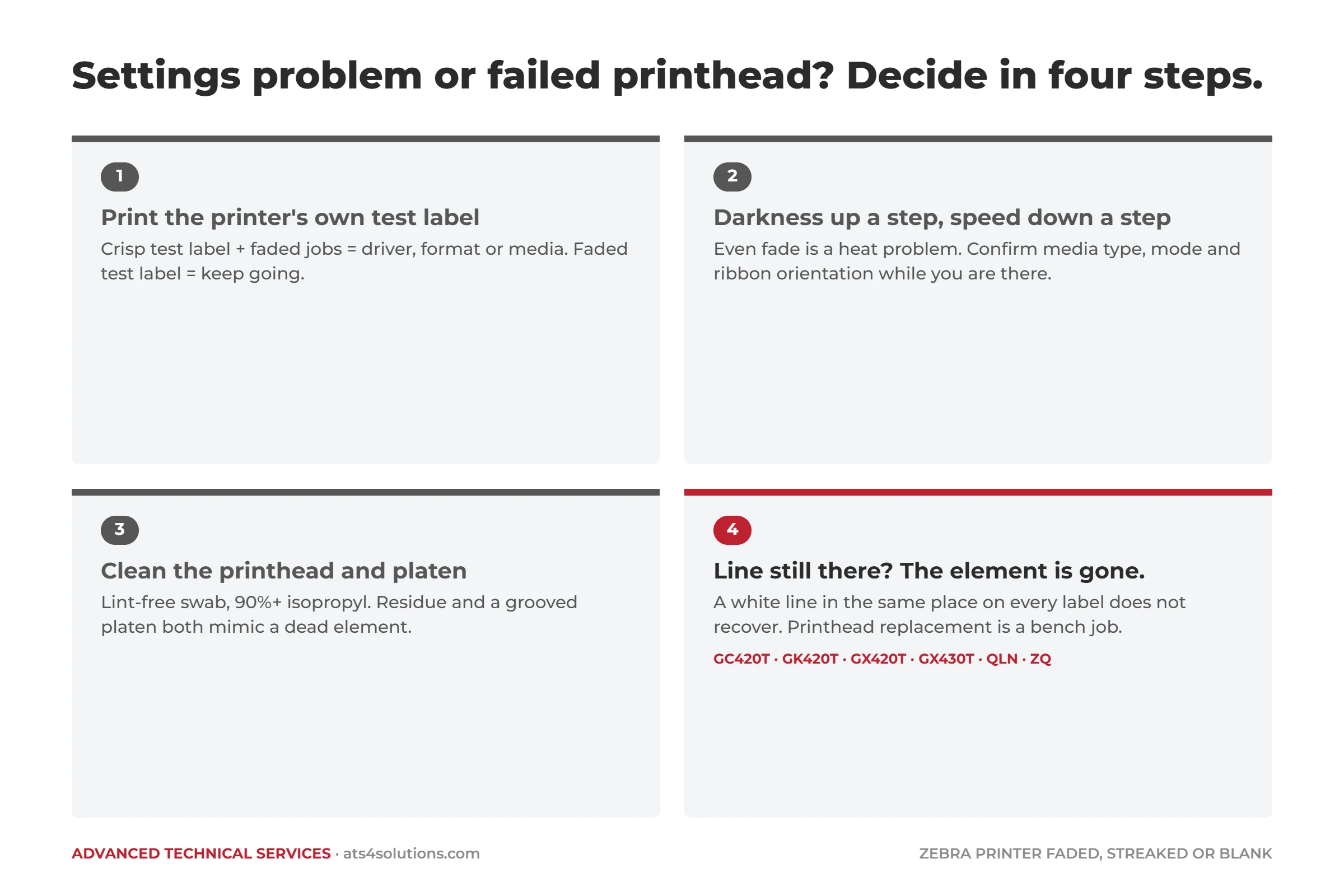
A consistent white vertical line, a dropout that runs the full length of the label in exactly the same position every time, is a failed printhead element. Each element prints one dot column. When one burns out, that column stops printing, and it stays stopped. This is the one print-quality fault that does not recover, and it is the most common printer repair we do.
Before you conclude that, rule out the two things that mimic it.
A dirty printhead. Adhesive, label dust and ribbon residue build up on the element line and block heat in the affected spot. Power the printer off, open it, and wipe the element line (the thin dark strip under the print mechanism) with a lint-free swab and isopropyl alcohol of at least 90 percent. Let it dry before closing. Zebra recommends cleaning the printhead every time you change a ribbon or roll. If the line disappears, it was residue.
A worn or damaged platen roller. The platen is the rubber roller that presses the label against the printhead. A groove, a flat spot or a build-up of adhesive on the platen leaves a light band or a fuzzy streak, usually wider and softer-edged than a dead element. Clean it with alcohol. If it has a visible groove or is no longer round, it needs replacing, and that is a quick bench job on any of the desktop models.
If the line survives a clean printhead and a clean platen, the element is gone. A printhead is a wear part with a rated life measured in the distance of media it has printed, and a busy desktop printer will reach that life in a few years. Replacement restores the printer to new print quality at a fraction of the cost of the unit, and it takes far less time than sourcing and configuring a new one.
Two things shorten printhead life that are worth fixing at the same time: running darkness higher than the media needs, and running without ever cleaning the head. Both accelerate the burn-out you are now dealing with.
Printhead or platen worn out?
Printhead and platen roller replacement is the most common printer repair on our bench, on Zebra GC420t, GK420t, GX420t, GX430t, QLn and ZQ models, including discontinued ones. Send us the model and serial number and a sample of what the labels look like, and we will come back with a quote.
Why is my Zebra printer printing blank or garbled labels?
If the printer is feeding labels but printing nothing, or printing characters, symbols and fragments that make no sense, the print mechanism is almost certainly fine. The problem is between your computer and the printhead.
Check the ribbon and mode first, because a ribbon inside out or a direct-thermal/thermal-transfer mismatch produces blank labels, and it is a thirty-second fix. That is covered above.
Check the print language. The GK420t and GX series speak two printer languages, EPL and ZPL. A label format written in one, sent to a printer set to the other, comes out as blank labels or garbage text. If the printer has been replaced or reconfigured, or the labels are coming from a new application, this is the first suspect.
Check the driver. A driver for the wrong model, or a driver installed after the USB cable was connected rather than before, produces exactly this symptom. Remove it, reinstall the correct Zebra driver for the model, and reconnect.
Clear the queue and power cycle. A stuck or corrupted job at the head of the print queue can hold the printer in a loop of blank labels. Cancel all jobs, power the printer off for thirty seconds, and resend.
Check the label format against the media. A format sized for 4 x 6 inch labels sent to a printer loaded with 2 x 1 inch stock prints part of the image, or none of it, on each label.
If all of that checks out and the printer still produces blank or garbled labels, the fault has moved into the hardware: a corrupted firmware state, a failing main board or communication board, or on the mobile printers a failing Bluetooth or Wi-Fi radio. Those are bench repairs.
Why does my Zebra printer skip labels or print in the wrong place?
A media sensor that has lost calibration produces blank labels and is usually free to fix. If the printer feeds several labels for every one it prints, prints across the gap, or reports media out with a full roll loaded, the media sensor has lost track of where each label starts. Clean the sensor window (a small lens in the media path) with a dry swab and then an alcohol swab, confirm the labels are loaded with the print surface facing up, and run the printer's media calibration. On the GK and GX series calibration is a feed-button sequence; on the mobile printers it is in the settings menu. If the printer cannot calibrate on clean, correctly loaded media, the sensor has failed, which is a bench repair.
Faded or streaked print on Zebra QLn and ZQ mobile printers

The QLn and ZQ series share the faults above with two additions. First, a battery at the end of its life delivers less current to the printhead, and the first symptom is light print that no darkness setting fixes. Swap in a charged, known-good battery before assuming the printhead is worn. Second, these units are carried, dropped and clipped to belts, so a media cover that no longer latches, a damaged latch sensor, or a cracked housing will cause feed faults and print gaps that look like sensor or printhead problems. We repair all of those.
Zebra label printer models covered in this guide
The checks and repairs above apply to every Zebra printer on our repair page. This table shows where to start for each one.
| Zebra model | Type | Start with | Bench repair if |
|---|---|---|---|
| GC420t, GK420t | Desktop printer, thermal transfer and direct thermal | Darkness and speed in the driver, ribbon side, print language, feed-button calibration | White line survives cleaning, grooved platen, or sensor will not calibrate |
| GX420t, GX430t | Desktop printer, thermal transfer and direct thermal | Darkness and speed in the driver, ribbon side, print language, feed-button calibration | White line survives cleaning, grooved platen, or sensor will not calibrate |
| QLn220, QLn320 | Mobile printer, direct thermal | Darkness in the settings menu, known-good battery, clean printhead, menu calibration | Failed printhead element, platen, media cover latch or sensor, or radio fault |
| ZQ210, ZQ220, ZQ310, ZQ320, ZQ510, ZQ520, ZQ610 | Mobile printer, direct thermal | Darkness in the settings menu, known-good battery, clean printhead, menu calibration | Failed printhead element, platen, media cover latch or sensor, or radio fault |
Where the free fixes end
If you have printed a test label, set darkness and speed sensibly, confirmed the media and ribbon, cleaned the printhead and platen, and the printer still prints faded, streaked or blank, you have done the diagnosis. What remains is a printhead, a platen, a sensor or a board, and those are the jobs our bench handles on every model in this guide.
Our Zebra thermal label printer repair page lists the GC, GK, GX, QLn and ZQ models we support.
Get your Zebra printer printing clean labels again
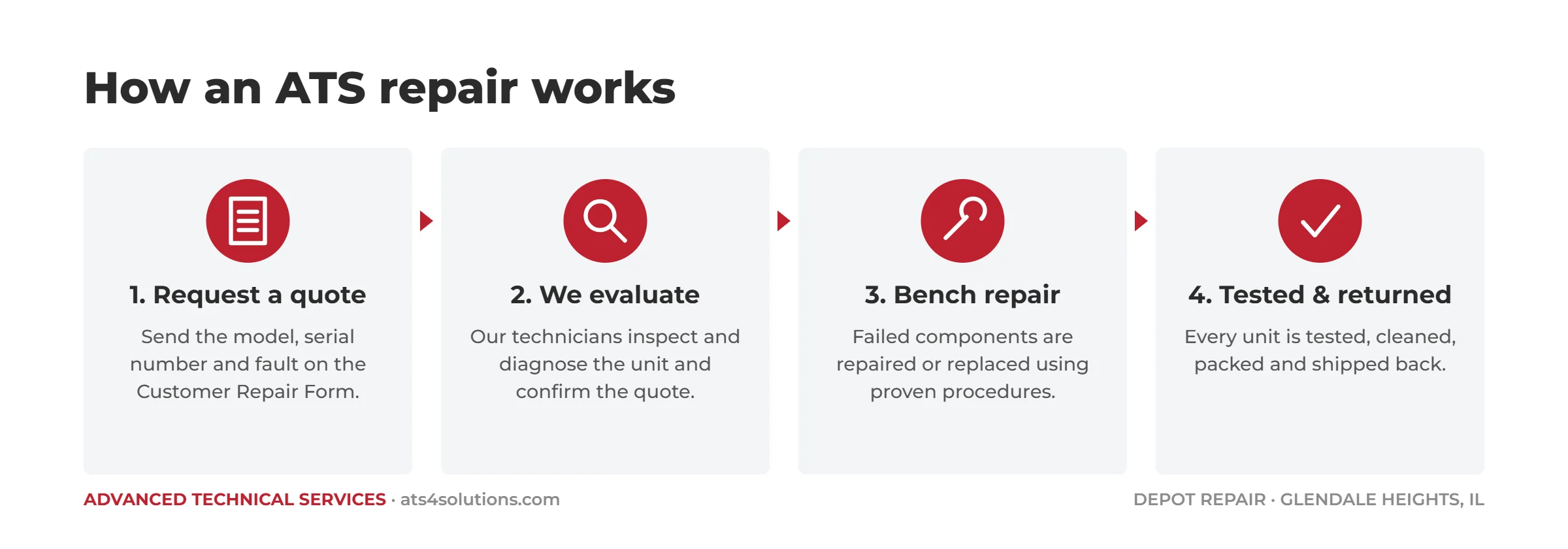
Fill out our Customer Repair Form with the model and serial number and which of the three symptoms you have: faded, a white line, or blank. Single printers and full fleets are both welcome. We will tell you which part it most likely is, what the repair involves, and what it will cost.
Frequently asked questions
What are the most common problems with Zebra printers?
The most common Zebra label printer problems are faded print, a white line or streak on every label, blank or garbled labels, and labels that skip or print across the gap. Faded print is usually darkness, speed, media or ribbon. A same-place white line is a dirty or failed printhead, or a worn platen roller. Blank labels point to the print mode, printer language, driver or queue. Skipping is the media sensor or calibration.
Why is my Zebra printer printing faded labels?
If the fading is even across the label, it is darkness, print speed, the wrong media or ribbon, or a ribbon loaded inside out. If it is a line or band in the same place on every label, it is a dirty or worn printhead, or a damaged platen roller.
How do I make a Zebra label printer print darker?
Raise the darkness setting in the driver's Printing Preferences (desktop models) or the settings menu (mobile models) in small steps, and lower the print speed if needed. If darkness is already high and print is still light, the media is wrong for the printer or the printhead is worn.
Why is my Zebra printer printing blank labels?
Ribbon loaded inside out, a direct-thermal/thermal-transfer mode mismatch, a print language mismatch (EPL vs ZPL), the wrong driver, or a stuck print queue. Check them in that order.
How do I recalibrate a Zebra label printer?
Clean the media sensor, load the labels print-side up, then run the media calibration: a feed-button hold sequence on the GK and GX desktop series, or the calibration option in the settings menu on QLn and ZQ mobile printers. The exact sequence is in the model's user guide.
Is it worth replacing the printhead on an older Zebra label printer?
Usually, yes. The GK420t, GX420t, GX430t and QLn series are discontinued but widely deployed, and a printhead replacement restores new print quality for a fraction of the cost of a replacement printer, without changing drivers, formats or workflows.
How often should I clean a Zebra printhead?
Zebra recommends cleaning the printhead every time you change a ribbon or a roll of labels. Power the printer off and wipe the element line with a lint-free swab and isopropyl alcohol of at least 90 percent, then let it dry before closing. Regular cleaning prevents residue streaks and extends printhead life.
Why does my Zebra printer print a white line on every label?
A thin white line in exactly the same place on every label is usually a failed printhead element. First rule out a dirty printhead and a worn or dirty platen roller by cleaning both with isopropyl alcohol. If the line survives a clean printhead and platen, the element has burned out and the printhead needs replacing.
Why is my Zebra printer skipping labels?
Skipping labels, printing across the gap, or reporting media out with a full roll means the media sensor has lost calibration. Clean the sensor window, load the labels print side up, and run media calibration: a feed-button sequence on the GK and GX series, or the settings menu on QLn and ZQ mobile printers. If it will not calibrate on clean, correctly loaded media, the sensor has failed.
Can a Zebra printhead be repaired, or does it need to be replaced?
A burned-out printhead element cannot be restored, so a printhead with a dead element is replaced rather than repaired. The printhead is a wear part, and replacing it returns the printer to new print quality at a fraction of the cost of a new printer, without changing drivers, label formats or workflows.
Sources: Zebra Technologies, Print Quality Issues (Zebra Support).
Last reviewed September 2026 by the ATS repair team.
Advanced Technical Services has repaired industrial electronics from its Glendale Heights, Illinois facility since 1981, and is ISO 9001 certified. We repair thermal label printers, barcode scanners, mobile computers and ring scanners from Zebra, Honeywell, Datalogic, Intermec and Symbol for customers nationwide.